.png?width=132&height=50&name=gs-logo-white%202(1).png "gs-logo-white 2(1)")
.png?width=169&height=64&name=gs-logo-white%202(1).png "gs-logo-white 2(1)")
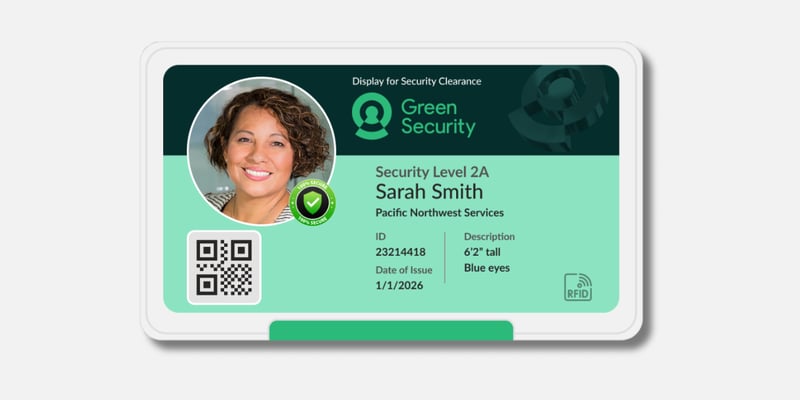
Congratulations on receiving your Smart Badge. You’re just a few quick steps away from getting set up and ready for seamless check-ins.
Follow the instructions below to pair your badge, complete setup, and start using it at your facilities.
Step 1: Open the Smart Badge section
After receiving your Smart Badge, open the Green Security Mobile App and navigate to the Smart Badge module. This is your control center for setup and daily use.
.png?width=280&height=280&name=Smart%20Badge%20(1).png)
Step 2: Follow setup instructions in the app
Inside the Smart Badge module, you’ll find step-by-step guidance to:
- Pair your Smart Badge to your phone
- Complete any required software updates
- Learn how to use your badge at facilities
Step 3: Pair your Smart Badge
Once your badge is paired:
- You’ll see your battery level
- You’ll be able to sync your check-in status when arriving at a facility
- You’ll see your badge’s current software version and any available updates
Pairing Your Smart Badge
Before you begin, make sure you have your Smart Badge with you and the Green Security mobile app open on your phone. Ensure Bluetooth is enabled on your device and that the Green Security mobile app has permission to access Bluetooth.
Standard Pairing (Recommended)
Follow these steps to pair your Smart Badge.
- Launch the Green Security mobile app on your phone.
- Hold your Smart Badge near your phone and keep it nearby throughout the pairing process.
- Select your badge in the app. Confirm the MAC address shown on the popup in the app matches the number on the back of your badge.
- If it does not appear, press the button on the back of your Smart Badge for three seconds to enable pairing mode.
- You may be asked to scan the QR code on the back of your badge if multiple Smart Badges are detected.
- Wait for confirmation. You'll see a confirmation message appear once pairing is complete.
Manual Pairing
Manually pair your badge at any time within the app.
- Open the Smart Badge module in the Green Security mobile app
- Select the option to Manually Pair Your Badge
- Scan the QR code on the back of your Smart Badge
- Keep your badge near your phone until pairing completes
- Wait for the confirmation message
Tips for Success
- Keep your Smart Badge close to your phone during the entire process
- Enable mobile app notifications to stay informed on scan status and take any required actions
- Double-check the MAC address to ensure you’re connecting to the correct badge
-1.png?width=600&height=300&name=Pairing%20Smart%20Badge%20(1)-1.png)
Using Your Smart Badge at a Facility
Your Smart Badge works automatically when you arrive at a facility. Depending on your status and the facility’s requirements, your badge will update to show whether you’re checked in and authorized to be onsite.
Quick Reference
- Green = You’re checked in and authorized
- Red = Action needed or not authorized
- Always keep your badge near your phone for the best experience
What Happens When You Arrive (Gateway Check-In)
When you enter a facility, a Gateway will detect your Smart Badge and attempt to check you in. Not every facility or zone will have a gateway enabled. If there is not one present, complete a mobile check-in.
If you’re compliant:
At facilities with no extra steps required:
- You’ll be automatically checked in
- Your badge will turn green
- You’ll receive a notification in the Green Security mobile app
At facilities that require screening or full check-in:
- You’ll get a notification prompting you to complete check-in in the app
- Open the app and complete the steps
- Once finished, your badge will turn green
How long does the green badge last?
- If appointments are required: until your appointment ends
- If not: until midnight
- Or until a new scan occurs
If you’re not compliant:
- Your badge will turn red (for 2 hours)
- You’ll receive a notification explaining why
Common reasons include:
- Missing or incomplete credentials
- No appointment at a required facility
While You’re Onsite
Gateways may re-scan your badge while you’re inside the facility.
- If you’re in an authorized area → your badge stays or turns green
- If you’re in a restricted area → your badge turns red (for 1 hour)
Mobile Check-In
You can also check in using the Green Security mobile app:
- If your badge is near your phone, it will turn green automatically
- Includes:
- GPS check-ins
- Completing screening questions
Badge timing:
- With appointments: green until your appointment ends
- Without appointments: green until midnight
- Or until another scan occurs
Sync Your Badge
If you checked in but your badge didn’t turn green (for example, your badge wasn’t nearby or you used a kiosk), you can manually sync it:
- Open the Smart Badge module in the Green Security mobile app
- Hold your Smart Badge near your phone
- Tap Sync Badge Status
- Wait for the badge light to update
If it doesn’t change color, try again while keeping the badge close to your phone.
Updating Your Smart Badge Software
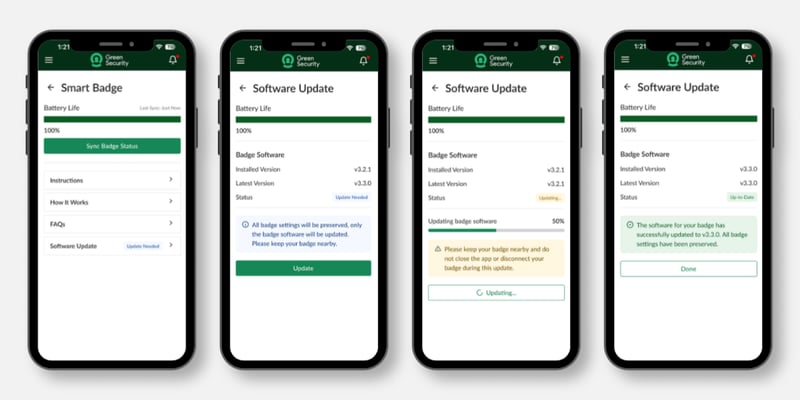
Keeping your Smart Badge up to date ensures it works reliably at all facilities. You can check and install updates anytime in the Green Security mobile app.
Check for Updates
- Open the app
Launch the Green Security mobile app. - Go to the Smart Badge module
This is where you manage your badge settings and status. - View Badge Settings status
In the Badge Settings section, you’ll see:
- Whether your badge software is up-to-date, or
- If a software update is available
- View details (optional)
Tap into the section to see your badge’s current version and the latest available version.
Install an Update
If an update is available:
- Keep your badge nearby
Hold your Smart Badge close to your phone. - Start the update
Tap Update in the app. - Wait for completion
Keep your badge near your phone until the update finishes. You’ll receive a confirmation message when it’s done.
Important Notes
- Your Smart Badge must have at least 30% battery to complete an update
- If your battery is low, charge your badge first, then return to the app
- Do not move your badge away from your phone during the update
Smart Badge Start Guide and User Manual
Product: Green Security® Smart Badge
Version: 1.0 (Enterprise Release)
Audience: Badge Holders, Facility Administrators, IT & Security Teams
Associated Software: Green Security Mobile App
Last Updated: April 2026
Overview and Intended Use
The Smart Badge is a wearable access and compliance signaling device that provides facilities with trusted, near real‑time visibility into the presence and authorization status of non‑employees onsite.
Unlike legacy badges, the Smart Badge dynamically reflects a badge holder’s current compliance, authorization, and check‑in status based on facility rules, credentials, and appointments. This enables facilities to:
- Improve onsite safety and compliance confidence
- Reduce manual check‑in for badge holders
- Maintain accurate occupancy and authorization records
- Deliver a streamlined and professional experience for vendors and visitors
The Smart Badge functions in conjunction with the Green Security mobile app and supported facility infrastructure such as Gateways.
Important: The Smart Badge is an access and compliance signaling device. It does not replace physical access controls, compliance policies, supervision, or emergency systems.
General Information
Key Components
- Smart Badge: Wearable device displaying authorization status via LED indicators.
- Green Security Mobile App: Mobile application used for pairing, check‑ins, updates, and status sync.
- Gateway: Facility‑installed hardware that detects Smart Badges and performs scans.
Definitions
- Badge Holder: Individual assigned a Smart Badge.
- Check‑In: Confirmation that a badge holder is authorized and present at a facility.
- Compliant: The badge holder meets all facility credential and policy requirements.
- Spot Check: Validation scan performed while already checked in.
Technical Specifications
|
Model No. |
GREENBDG01 |
|
Lifespan |
2 years |
|
Dimensions |
58mm x 100mm x 8mm |
|
Weight |
15g |
|
Battery Type |
non-removable 3V, Li-io 500mAh |
|
Bluetooth Enablement |
Yes |
|
Battery Capacity |
168 hours of continuous use (or about one month with typical use) |
|
Charging Method |
USB-C |
Safety, Handling and Usage
The Smart Badge is not a medical device, emergency locator, or life‑safety system. Badge holders must still follow all facility safety and security procedures. Facilities are responsible for enforcing physical access policies regardless of badge state.
Storage and Environmental Conditions
- Do not store or operate the Smart Badge in extreme heat, cold, or humid environments.
- Do not leave the Smart Badge in direct sunlight or inside hot vehicles.
- Operate and store the badge only within published temperature ranges (see Technical Specifications).
Battery and Charging Safety
- Use only approved charging accessories.
- Do not attempt to open, crush, puncture, or modify the badge or battery.
- Discontinue use if the badge becomes excessively warm, damaged, or deformed.
- If the Smart Badge will remain unused for an extended period, it is recommended to charge the device every 3-5 months to maintain battery activity. Long-term storage without charging may lead to excessive battery self-discharge, which can result in irreversible capacity loss or the inability to reactivate the battery, thereby affecting the product's lifespan and performance.
Air Travel
The Smart Badge is safe for airline travel. It is recommended to power off the badge by holding the rear button for 3 seconds before flight.
Green Security for Vendors Mobile App Requirements
Once a badge holder has an approved Smart Badge credential, the Smart Badge module will appear in the Green Security mobile app. The Smart Badge module supports pairing and unpairing, battery status monitoring, badge status syncing, software updates.
Mobile app notifications are required for full Smart Badge functionality. Badge holders must enable notifications for the Green Security mobile app in their device settings to: receive check‑in confirmations, receive compliance and authorization alerts, and/or respond to facility screening requirements.
Mobile app notifications are essential for seamless check-ins at your facilities. Ensure notifications are enabled for the Green Security mobile app by navigating to your phone’s settings for the app.
- Pairing, software update, and operational instructions can be found within this [module of the mobile app.
- Once you have paired your Smart Badge (see Pairing Instructions), you will see the battery level of your badge. To ensure success, make sure that the Green Security Mobile App for Vendors has Bluetooth permissions enabled in order to pair your badge to your mobile app.
- Once you have paired your Smart Badge and are checked in at a facility, you will see a button to reflect your check-in status at the facility on your badge (see section syncing badge status instructions).
- Check for available software updates on your badge (see section software update instructions).
Pairing Instructions
Standard Pairing Instructions
- Open your Green Security mobile app.
- Bring your Smart Badge near your mobile phone. Keep the badge nearby until pairing is complete.
- Hold the button on the back of your Smart Badge until the badge has a blinking blue light.
- A popup will appear in your mobile app. Check that the listed MAC address matches the MAC address on the back of your Smart Badge. Select connect. If multiple badges are detected, choose the appropriate MAC address.
- You will receive confirmation once pairing is complete.
- If you run into trouble while pairing your badge, you may select the link to try manually pairing your badge (see section 3.2 for manual pairing). This link can be found in the Smart Badge module of your Green Security mobile app or at various points during the pairing process.
Manual Pairing Instructions
If standard pairing fails:
- Open the Smart Badge module in the Green Security mobile app.
- Select Manual Pairing.
- Scan the QR code located on the back of the Smart Badge.
- Keep the badge near the phone until pairing completes.
- Confirm successful pairing in the app.
Software Update Instructions
Checking for Updates
- Open the Smart Badge module in the Green Security mobile app.
- Navigate to Software Update.
- Review the currently installed version and available updates.
Installing Updates
- If an update is needed, bring your Smart Badge near your phone and click Update. Keep your badge near your phone until the software update is complete.
- Note: you will not be able to perform a software update if the battery level of your Smart Badge is under 30%. Charge your badge to at least 30% before performing a software update.
- You will receive confirmation once the software update is complete.
Operational Instructions
|
LED Color |
Meaning |
|
Blue |
Pairing Mode |
|
Green |
Authorized and compliance |
|
Red |
Not authorized or non-compliant |
Gateway (Touchless) Check-Ins
When a Gateway detects your Smart Badge at a facility that you are not currently checked-in at, a vendor scan will be performed.
Vendor is compliant at the facility
Facility does not require full check-in or screening questions
- You will be automatically checked in and your Smart Badge will turn green.
- If appointments are required, your badge will stay green until the end of your appointment or until a new scan is performed.
- If appointments are not required, your badge will stay green until midnight or until a new scan is performed.
- You will receive a mobile app notification letting you know you have been checked in.
Facility requires full check-in or screening questions
- You will receive a mobile app notification prompting you to complete the full check-in or screening questions in your Green Security mobile app.
- Once completing the full check-in or screening questions in your Green Security mobile app, you will be checked in at the facility (see section 5.3 for mobile check-in behaviors).
Vendor is not compliant at the facility
- Your Smart Badge will turn red for 2 hours
- You will receive a mobile app notification explaining why your Smart Badge has turned red
- Example: You are not fully credentialled at the facility.
- Example: You do not have an appointment at a facility that requires appointments.
Gateway spot checks
When a Gateway detects your Smart Badge at a facility that you are currently checked-in at, a spot check will be performed.
- If you are authorized to be at the associated facility zone, your Smart Badge will turn green if it is not already.
- If appointments are required, your badge will stay green until the end of your appointment or until a new scan is performed.
- If appointments are not required, your badge will stay green until midnight or until a new scan is performed.
- If you are not authorized to be the associated facility zone, your Smart Badge will turn red for 1 hour or until a new scan is performed
Mobile check-ins
If your Smart Badge is near your mobile phone when completing a mobile check-in on the Green Security mobile app, your badge will turn green.
- If appointments are required, your badge will stay green until the end of your appointment or until a new scan is performed.
- If appointments are not required, your badge will stay green until midnight or until a new scan is performed.
Examples of mobile check-ins include:
- GPS check-in
- Full check-in or screening questions (see 5.1.1.2)
Syncing the Smart Badge status from the mobile app
If you have performed a mobile check-in without your Smart Badge in range of your mobile phone or if you have checked in at a standard kiosk, your badge light will not be updated. To reflect your check-in status on your Smart Badge in either of these scenarios, you can sync your badge status from the Green Security mobile app.
- Navigate to the Smart Badge module in the Green Security mobile app.
- Bring your Smart Badge near your mobile phone and press the Sync Badge Status button. Keep your badge nearby until your badge light changes color.
- If appointments are required, your badge will stay green until the end of your appointment or until a new scan is performed.
- If appointments are not required, your badge will stay green until midnight or until a new scan is performed.
- If your Smart Badge does not change color, try again.
Troubleshooting
Badge does not pair: 1. Ensure Bluetooth is enabled, 2. Confirm badge is in pairing mode, 3. Try manual pairing via QR code
Badge does not change color: 1. Confirm battery level, 2. Perform manual status sync, 3. Retry after next Gateway scan
Software update fails: 1. Charge badge above 30%, 2. Keep badge stationary during update
For unresolved issues, contact support at (866) 750-3373 or support@gogreensecurity.com
Legal and Privacy
General Disclaimer
The Smart Badge provides status signaling based on system inputs and detections. Temporary discrepancies may occur due to connectivity, scanning frequency, battery level, or environmental factors. Facilities must maintain independent security controls and procedures.
Data Privacy
The badge collects data on your presence and status within a Green Security facility, and identifies compliance by linking to your Green Security Account. Personal data handling is governed by Green Security’s Privacy Policy, which can be viewed at https://gogreensecurity.com/privacy-policy
FCC Warning
This device complies with part 15 of the FCC Rules. Operation is subject to the following two conditions: (1) This device may not cause harmful interference, and (2) this device must accept any interference received, including interference that may cause undesired operation.
Any Changes or modifications not expressly approved by the party responsible for compliance could void the user's authority to operate the equipment.
Note: This equipment has been tested and found to comply with the limits for a Class B digital device, pursuant to part 15 of the FCC Rules. These limits are designed to provide reasonable protection against harmful interference in a residential installation. This equipment generates uses and can radiate radio frequency energy and, if not installed and used in accordance with the instructions, may cause harmful interference to radio communications. However, there is no guarantee that interference will not occur in a particular installation. If this equipment does cause harmful interference to radio or television reception, which can be determined by turning the equipment off and on, the user is encouraged to try to correct the interference by one or more of the following measures:
- Reorient or relocate the receiving antenna.
- Increase the separation between the equipment and receiver.
- Connect the equipment into an outlet on a circuit different from that to which the receiver is connected.
- Consult the dealer or an experienced radio/TV technician for help.[
This equipment complies with FCC radiation exposure limits set forth for an uncontrolled environment. This equipment should be installed and operated at a minimum distance 20cm between the radiator & your body.